FAQ

Short answers, real screens.

Anything unanswered: [email protected]. A person reads it.

01Setup

How do I start?

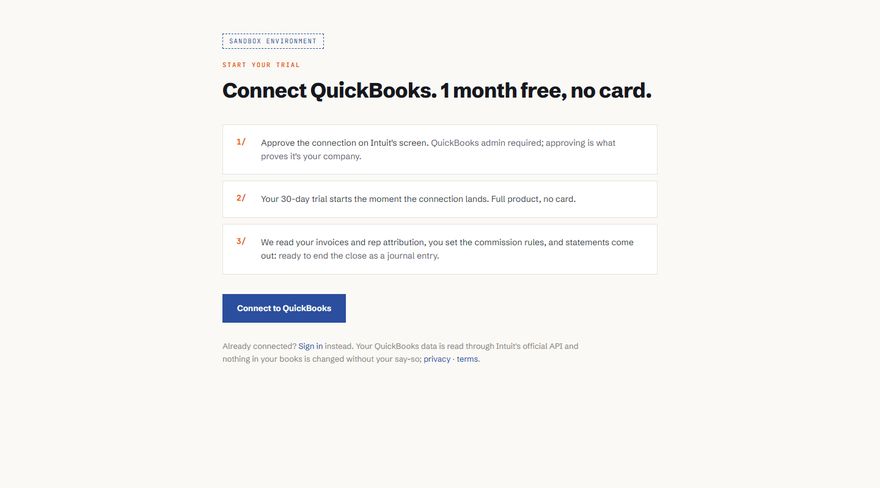
Connect your QuickBooks Online company at app.salesrepfielder.com/connect. Connecting is the signup; no separate account, no card. A QuickBooks admin approves on Intuit’s screen, and approving is what proves the company is yours.

How does SRF connect to QuickBooks?

Through Intuit’s official OAuth flow; you approve it inside QuickBooks. SRF reads invoices, including the rep attribution in custom fields. Disconnecting revokes access.

What does setup involve?

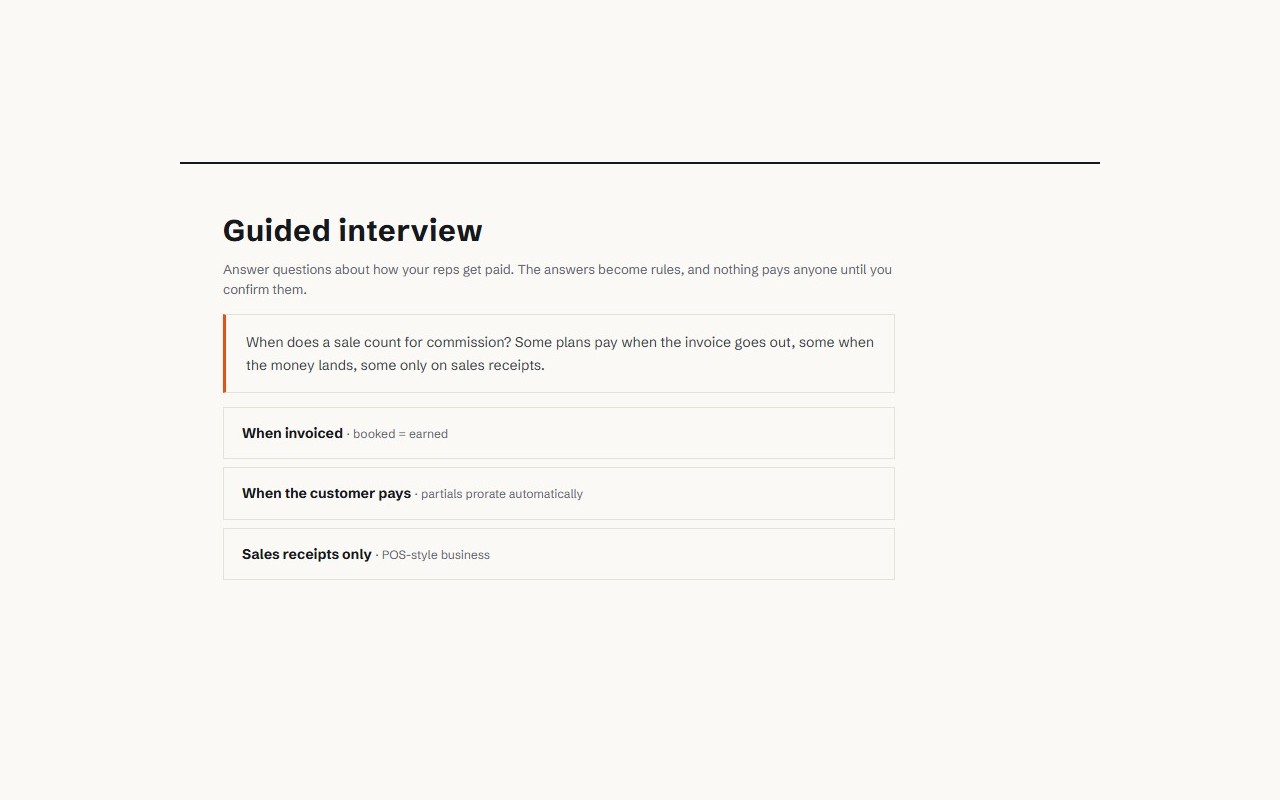
Three things it needs: who your reps are, how they get paid, and (for Desktop migrants) proof nothing was lost on the way over. A guided interview can build the plan: you answer questions, it writes the rules, and nothing pays anyone until you confirm them.

Why doesn’t QuickBooks Online have a Sales by Rep report?

It simply does not include one; not hidden behind a plan tier, absent (re-verified 2026-08-07). The migration also carries the Desktop REP field over as a custom-field dropdown of initials, no longer linked to any employee record. The data survives the migration; the reporting does not.

We just migrated. Is our rep data even there?

Almost certainly: demoted, not deleted. It sits in a custom-field dropdown as initials. The roster maps those back to humans, and migration mode verifies the attribution against your old Desktop export.

Is SalesRepFielder made or endorsed by Intuit?

No. It’s an independent product that connects through Intuit’s official developer APIs, with your authorization. QuickBooks® and Intuit® are Intuit’s trademarks, referenced only to describe compatibility.
The guided interview
Plan interview
The plan interview: it asks, you answer, your plan exists as rules, which pay no one until you confirm them.
02The close

What does a monthly close look like?

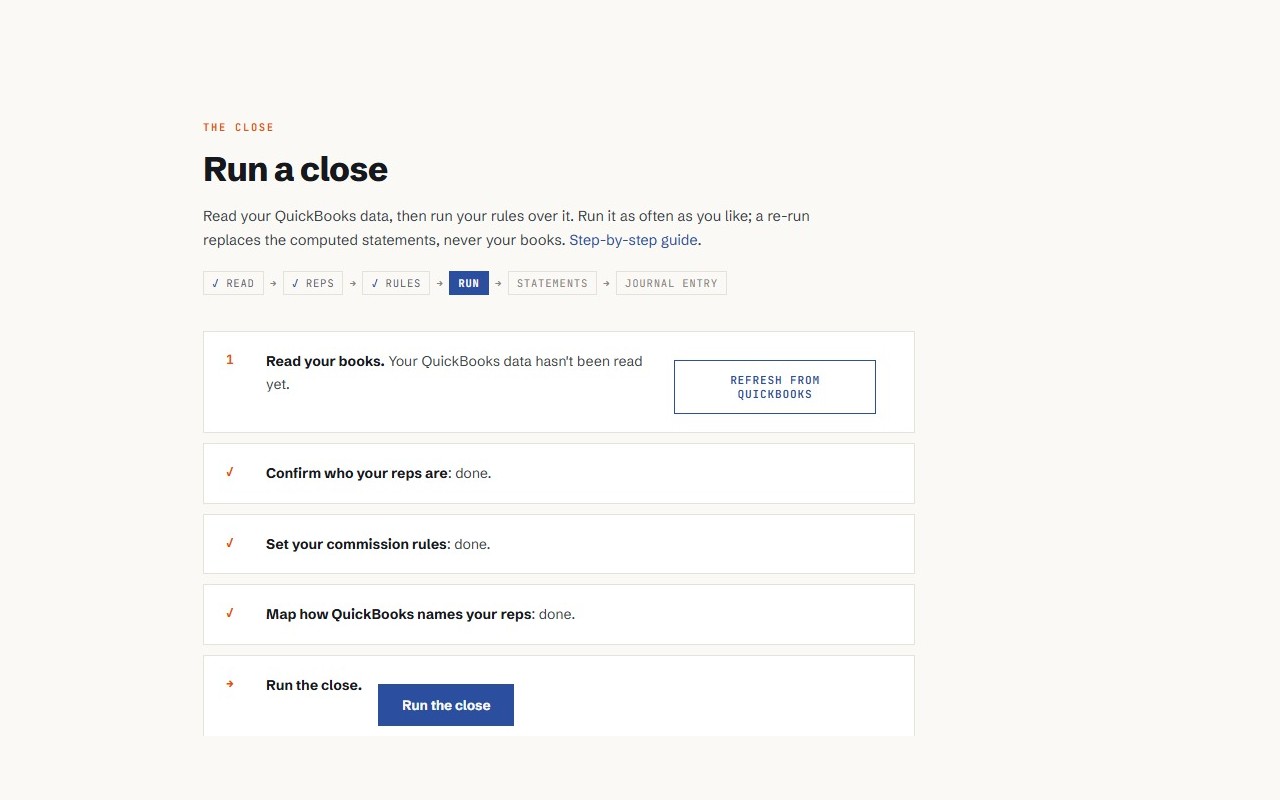
Two moves: read your QuickBooks data, then run your rules over it. The run ends as one statement per rep; every line traces to a QuickBooks transaction and a versioned rule.

Can I re-run a close?

As often as you like. A re-run replaces the computed statements, never your books.

What do reps receive?

A statement link: no login, no seat. The statement shows every document behind every dollar.

What data does SRF read, and does it change my books?

It reads invoices, customers, payments, and custom fields (including the sales-rep field) through Intuit’s API, and uses them only to produce your statements. Nothing in your books changes unless you approve it; the only write is the journal entry you review and choose to post. Disconnecting revokes access.

What actually posts to the books?

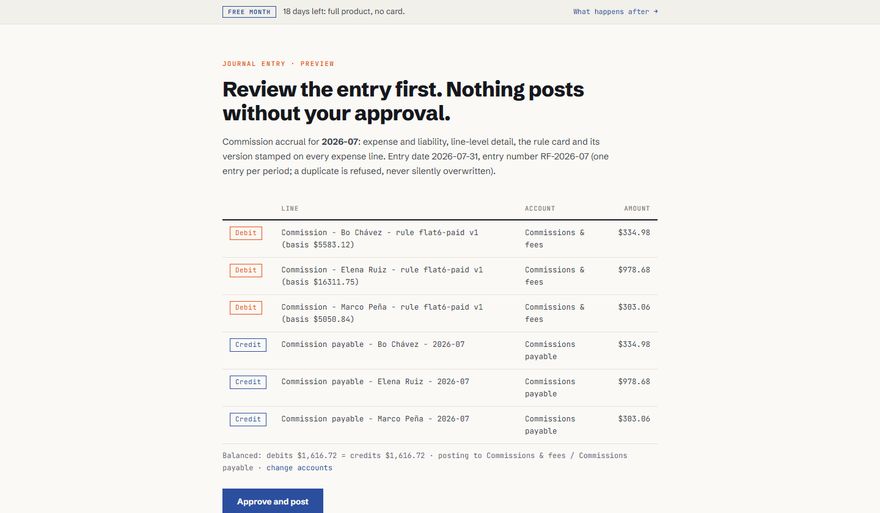
One journal entry per period: expense and liability, line-level detail, the rule and its version stamped on every line. Previewed first; a duplicate is refused, never silently overwritten.

Running a close
Run a close
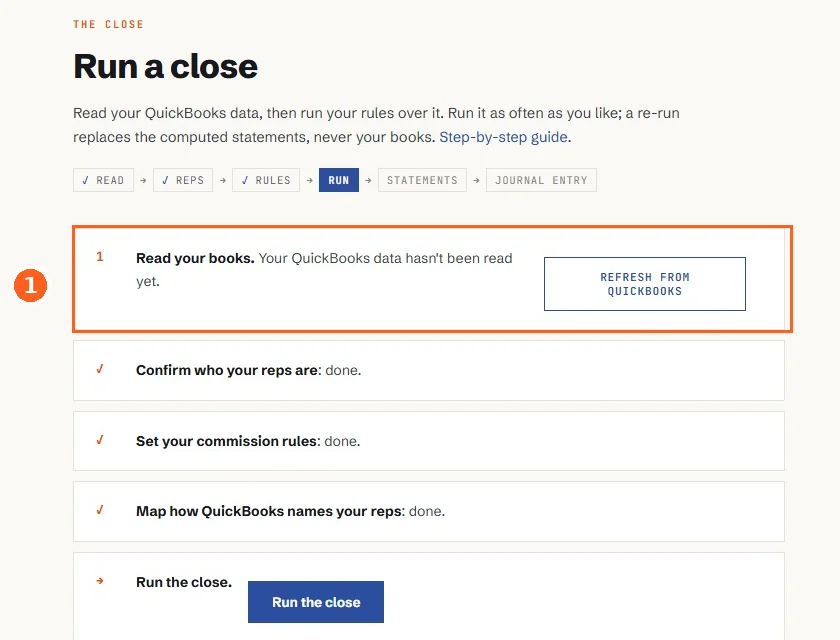
The close checklist: read the books, confirm reps, confirm rules, run.
03Rules & roster

What commission structures are supported?

Rates, splits, tiers, and draws, with legal guardrails. Rules are versioned, and unconfirmed rules never pay anyone.

QuickBooks only shows initials. How do you know who’s who?

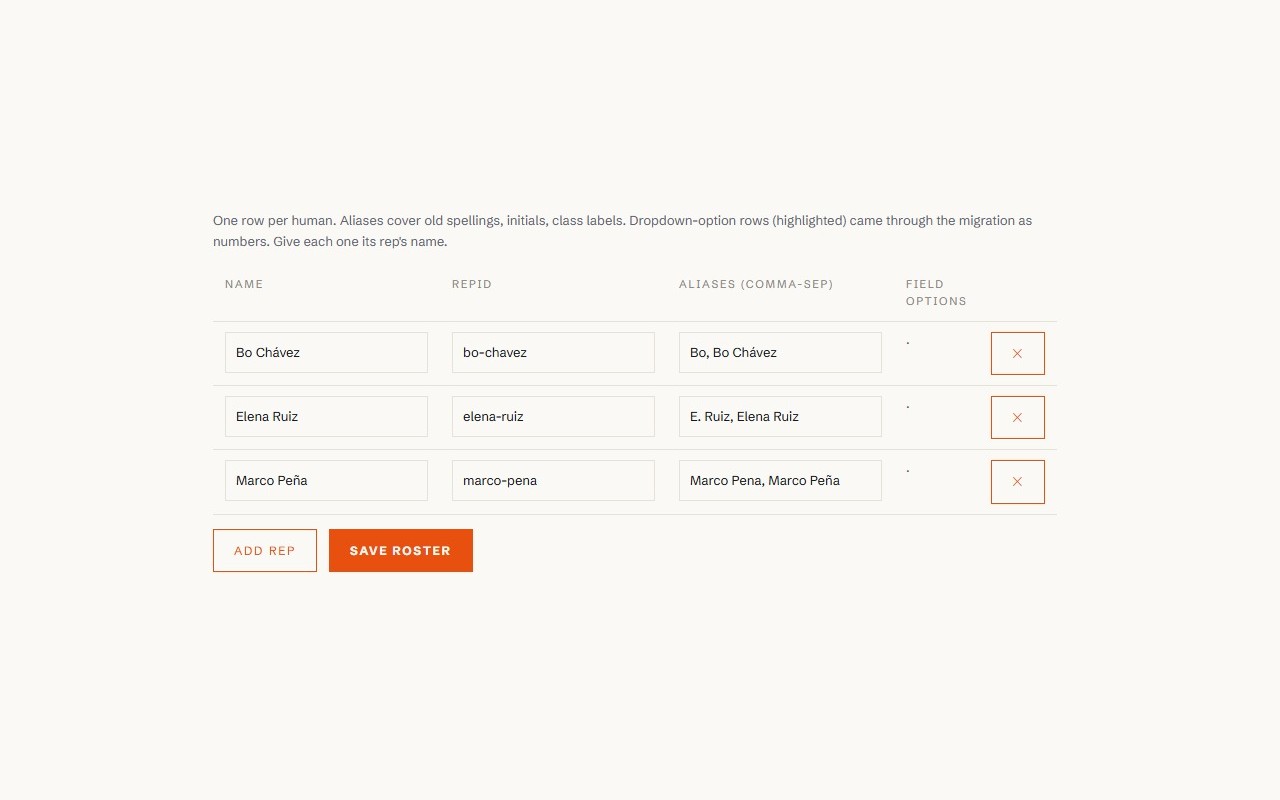
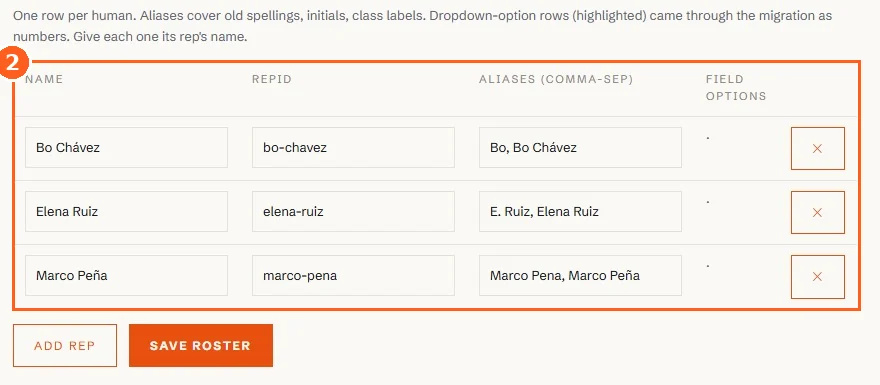
The roster: one row per human, with aliases covering old spellings, initials, and dropdown options that came through the migration as numbers. You give them their names back once.

The rep roster
Rep roster
Aliases map “E. Ruiz”, “Elena Ruiz”, and a bare dropdown number to the same person.
04The payout check

What does the payout check do?

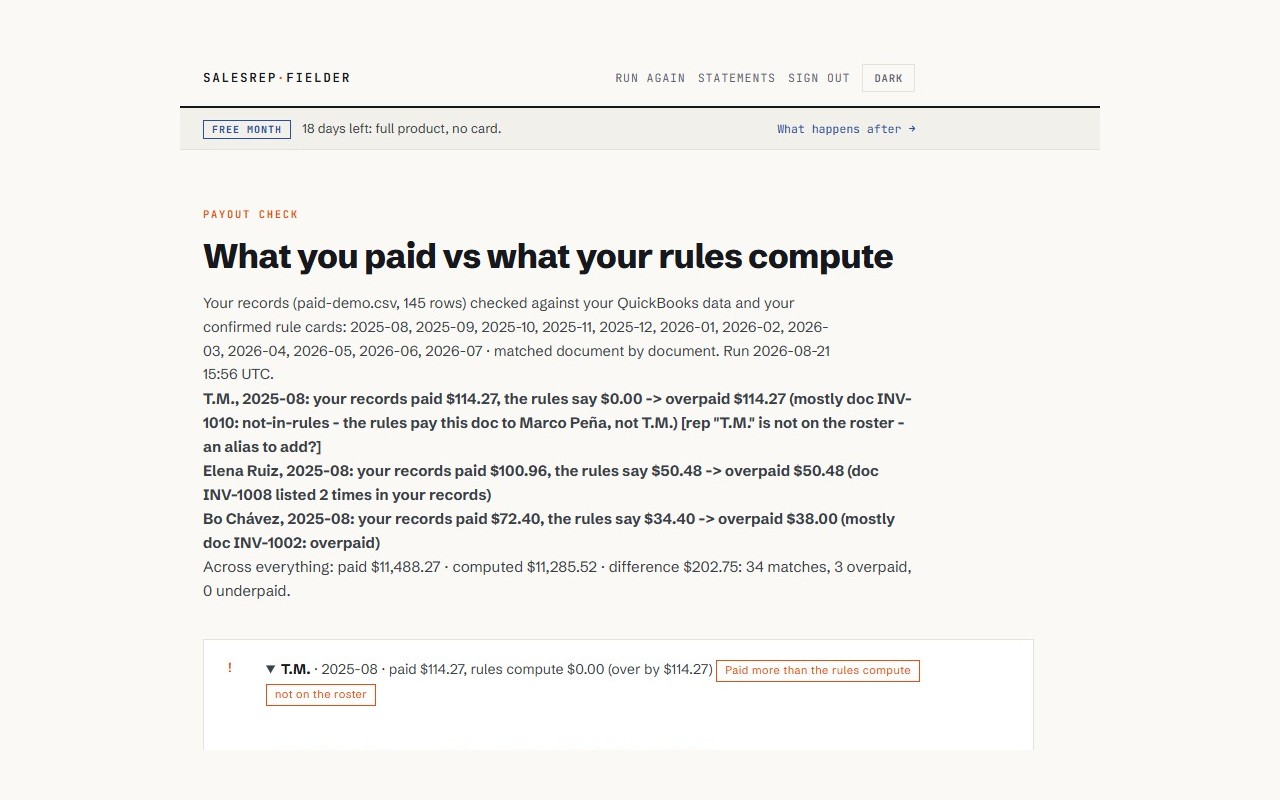
It replays what you actually paid against what your rules compute, document by document. Every document gets a verdict (MATCH, DRIFT, DUP, or UNKNOWN) with the reason stated, including “not in rules.”

What is migration mode?

Point the auditor at your old Desktop Sales-by-Rep export. It verifies rep attribution survived the migration, before you trust a statement.

An audit, summarized
Replay auditor summary
A real run on the demo books: 145 paid rows replayed against the rules. By rep and month: 34 match, 3 overpaid, 0 underpaid.
05Billing

How much does it cost?

Firms: $30 per client file per month, 10 active payees included, +$2.50 beyond, 3-file minimum ($90/mo floor), your own books free forever. Direct: $10 per active payee per month, $20 minimum. No platform fee, no demo call. Full prices: the pricing page.

Do I need a card to try it?

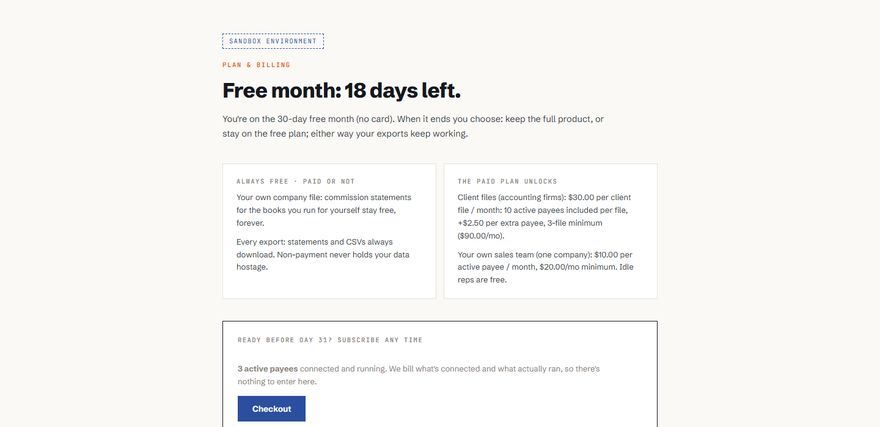
No. One month free, full product, no card, no auto-conversion. A card goes on at the end of the month only if you choose to continue.

What happens at day 30?

Adding a card continues the service; there’s no auto-conversion, nothing is charged and nothing is deleted. Without a card, client files lock, your own books stay free, and export stays on.

What counts as an “active payee”?

A rep who received a statement that month. Idle reps are free.

Is there a launch discount or limited-time pricing?

No. One price, posted. No countdowns, no “pricing expires Friday.” The price is on the pricing page, in full.

Is sales tax charged on my subscription?

Not yet. No sales tax is collected in your state, and your invoice says so explicitly. When registration thresholds approach in a state, the line flips to the real tax.

Can I pay annually?

Yes: 25% off, from month two. It cannot start on day one because an annual price needs a real number; your free month measures it, and that measured count prices the annual term. Growth is trusted: run more than you committed and nothing is metered or auto-charged; if usage runs far beyond the commitment we talk to you first.

Can I cancel, and what happens to my data?

Anytime, from the app or by email; it takes effect at the end of the billing period. Export stays on regardless of plan, and you can request full deletion. Payments are processed by Stripe, which receives your billing details directly at checkout; we never hold card numbers.

Can we get our data out?

Always: CSV or XLSX, paying or not. And the real close already lives in your QuickBooks as journal entries.

The rest of the prices are on one page.
$10 /payee direct · $30 /client file for firms · free month first
See prices
06How-to guides
Connect QuickBooks & start your free month · ~3 min
Watch · 0:38What setup looks like once you're connected: roster, rules, guided interview. Captions available.
  1. Open app.salesrepfielder.com/connect. This is the signup; no separate account to create.
    The connect page: the trial offer and the Connect to QuickBooks button
    The connect page. One button; Intuit's authorization screen comes next.
  2. Select Connect to QuickBooks and approve on Intuit's authorization screen. A QuickBooks admin must approve; approving is what proves the company is yours.
  3. Your one-month trial starts the moment the connection lands: full product, no card.
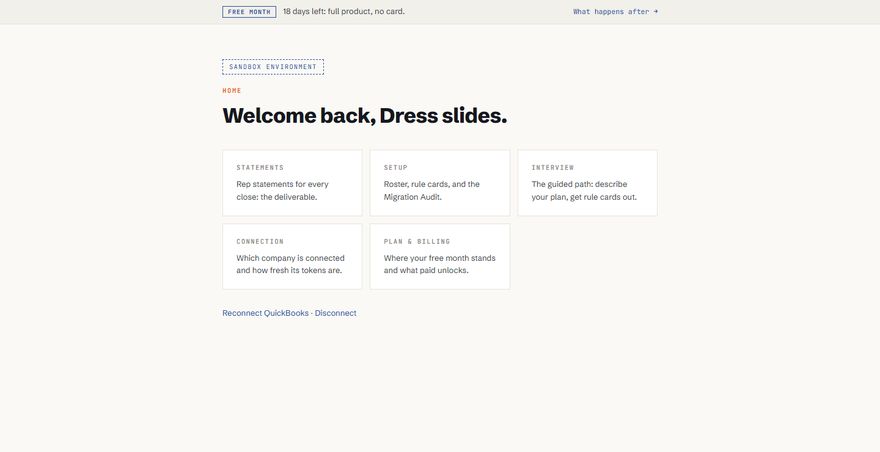
    The signed-in home: Run a close button, Setup, Payout check, Connection and Billing tiles
    Signed in: run a close, or open Setup to tell it about your reps and rules.
Run your first commission close
Watch · 0:46The whole close, start to finish, on a demo company. Captions available.
  1. Connect and read. SalesRepFielder reads your invoices, payments, and the sales-rep custom field, including the initials-only field the migration leaves behind.
    The Run a close page: step one, Read your books, with a Refresh from QuickBooks button; the roster, rules and rep-mapping steps below it marked done.
    The close page lists what a close needs and where your company stands. Reading your books is step one.
  2. Build the rep roster. Map rep initials and spelling variants to actual people, so statements come out under real names.
    The rep roster: one row per person with name, rep id, and an aliases column holding old spellings and initials.
    One row per human. Aliases catch the old spellings, initials and class labels your data already carries.
  3. Set commission rules. Enter rates, splits, tiers, and draws. A guided setup reads the plan back in plain English before anything runs.
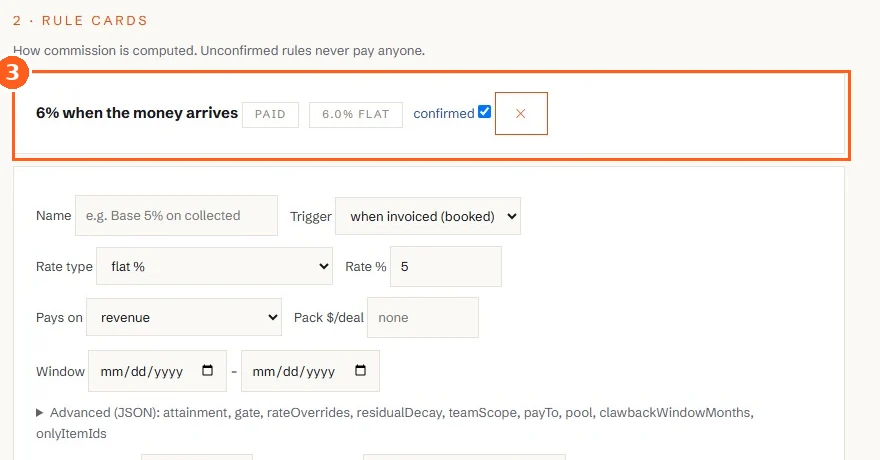
    Rule cards: a confirmed card reading 6% when the money arrives, above the form for adding another with trigger, rate type, and what it pays on.
    A rule in your words, confirmed by you. Unconfirmed rules never pay anyone.
  4. Produce statements. Run the close for one statement per rep; every line traces to a QuickBooks transaction and a versioned rule.
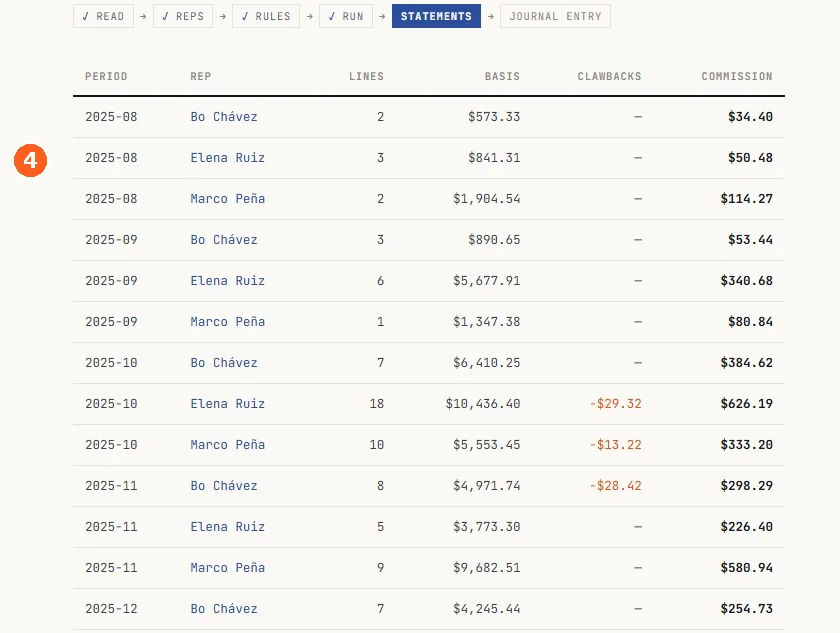
    The commission statements list: period, rep, line count, basis, clawbacks and commission, with clawback amounts shown in red.
    One statement per rep, per period. Clawbacks show in the same row as the commission they reduce.
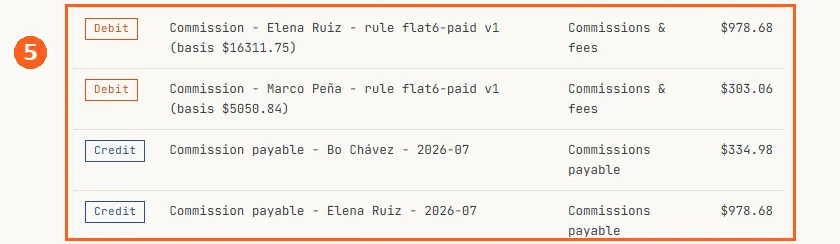
  5. Review & post the journal entry. Optionally review the commission JE and post it into QuickBooks. Nothing posts without your approval; statements and exports work whether or not you post.
    The journal entry preview: three debit lines to commissions and fees carrying the rep, the rule and its version, and three matching credit lines to commissions payable.
    The entry before it exists in QuickBooks: expense debited, liability credited, the rule card and its version on every line.
Audit what you already paid (payout check)
Watch · 0:42Upload, replay, and read the verdicts. Captions available.
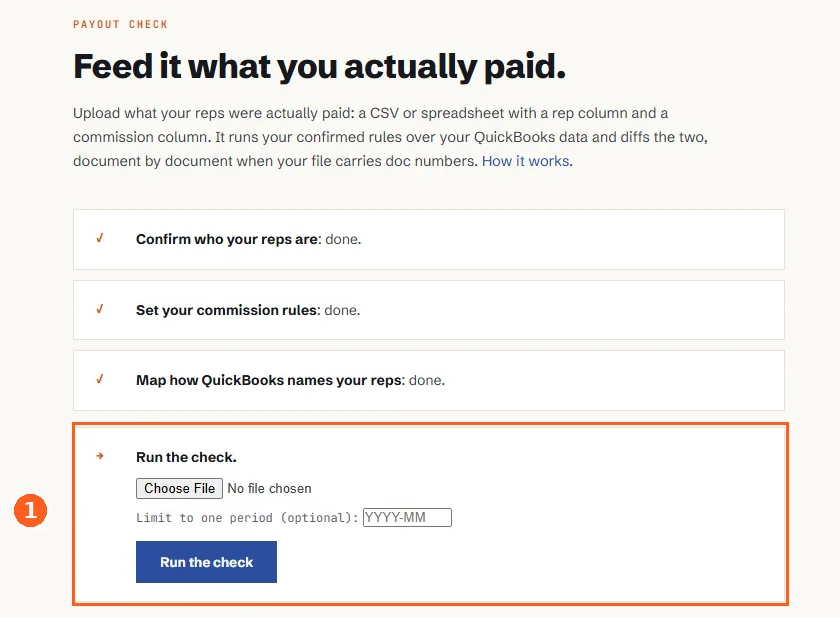
  1. Give it what you paid. Feed the auditor your actual paid statements plus your QuickBooks data.
    The payout check upload page: feed it a CSV or spreadsheet with a rep column and a commission column, with an optional single-period filter.
    A CSV or spreadsheet with a rep column and a commission column is enough. Doc numbers unlock per-document verdicts.
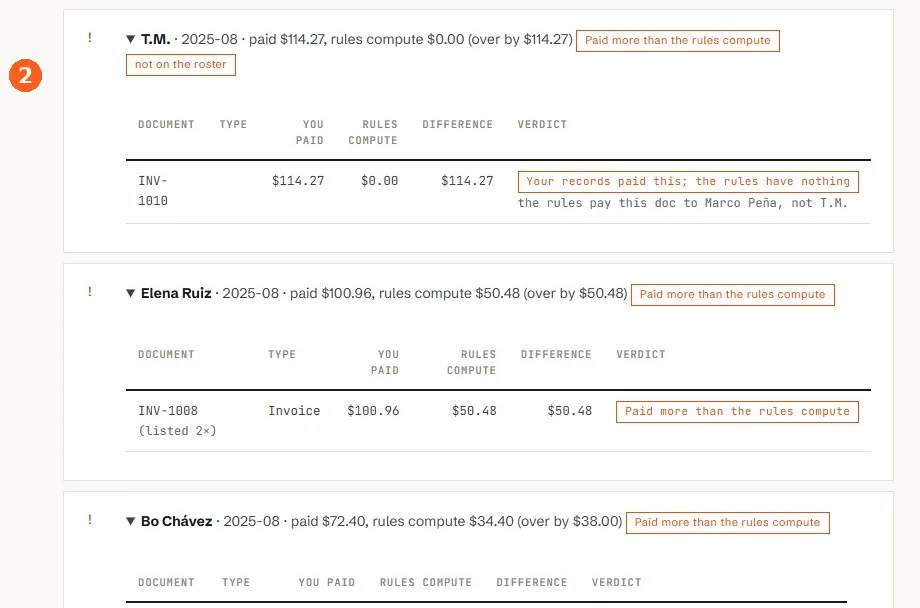
  2. Read the diff. It flags drift from the rules, duplicate payments, reps not in the roster, and an honest reason for anything it can't match.
    The replay report: three rep blocks showing a payee not on the roster whose invoice the rules pay to someone else, an invoice listed twice, and a payment thirty-eight dollars over what the rules compute.
    A verdict per document. Here: a payee who isn't on the roster (and the rules name who that invoice actually belongs to), an invoice listed twice, and one paid $38.00 over.
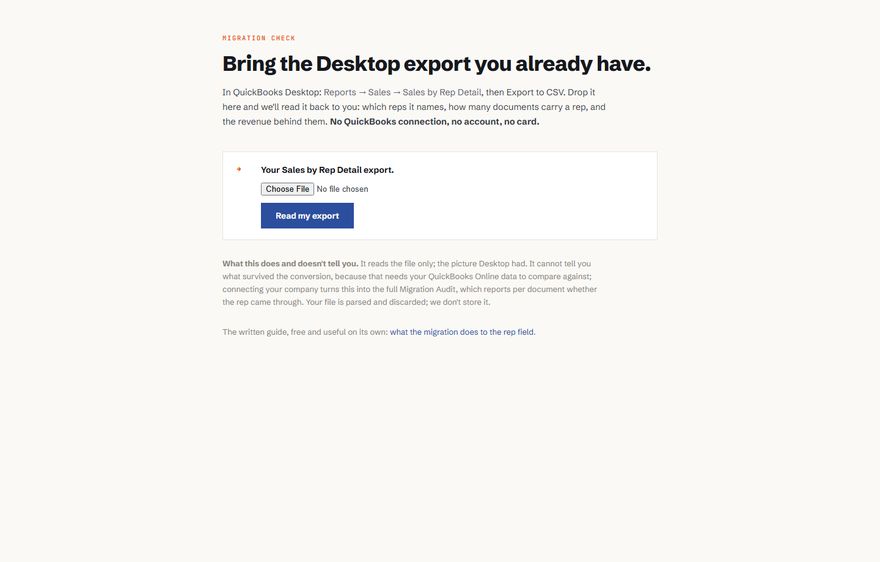
  3. Or run migration mode. Point it at your old Desktop Sales-by-Rep export and it verifies rep attribution survived into QBO, before you trust a single statement.
    The migration check: drop the Desktop Sales by Rep export and it reads it back
    Migration mode: no account needed; the export is read and discarded.
Review & post the journal entry
Watch · 0:38The entry before it exists in QuickBooks. Captions available.
  1. Preview it. Commission expense debited, commission liability credited, line-level detail, and the rule card plus its version stamped on every expense line.
    The journal entry preview: debit and credit lines with rep, rule card and version
    The preview: every expense line carries the rep, the rule card, and its version.
  2. Check the balance. Debits equal credits by construction; the page asserts it anyway.
    The balance line: debits equal credits, with the posting accounts named
    The balance line, and the two accounts the entry posts to.
  3. Approve, and only then post. One entry per period; a duplicate is refused rather than silently doubled. If your numbers move between the preview and your approval, it stops and points you at the fresh ones.
    The approve and post button under the previewed entry
    Approve and post. One entry per period; duplicates are refused.
The free month, and how annual works
Watch · 0:34What the trial is, what stays free, and what annual commits to. Captions available.
  1. One month free. Full product, no card.
    The plan and billing page during the free month
    Where the free month stands, and what paid unlocks.
  2. Two things stay free either way. Commission statements for the books you run for yourself, and every export. Non-payment never holds your data hostage.
  3. Then choose your term. Annual is 25% off and commits to the count you enter. Use last month's real number, because the free month is what measured it. Growth is trusted: run more than you committed and nothing is metered or auto-charged; if usage runs far beyond the commitment we talk to you first.
Migrate from QuickBooks Desktop · carrying Sales by Rep across
  1. Before you migrate, export a baseline. Run the Desktop Sales by Rep report for every period you may need to defend, and export it. It is the only artifact that says what the numbers were before the move. Already migrated without one? Verify against invoices instead.
  2. Know what the converter does. The REP field becomes a custom-field dropdown in QBO: initials only, severed from the employee record. The data rides along and stays recoverable through the API; the reporting disappears. QBO has no Sales by Rep report at any tier.
  3. Don’t trust a rebuilt report until it matches the baseline. QBO Advanced custom reports total tax-inclusive where Desktop was pre-tax. Our July 2026 test: one rep’s basis came out $21,077 against Desktop’s $20,573, a $504 phantom raise. Any rebuild must reconcile to the Desktop baseline, pre-tax, per rep, per period.
  4. Verify attribution survived, name by name. Build the roster (initials, old spellings, dropdown numbers, one row per human), then run the migration check against your old Desktop export. No account, no card, nothing stored.
    The rep roster: one row per person with name, rep id, and an aliases column holding old spellings and initials.
    The roster: aliases cover old spellings, initials, and dropdown options that migrated as numbers.
  5. Rebuild the close, not just the report. Rules where they’re versioned and confirmed, one statement per rep, a journal entry previewed before it posts.

Every screenshot and recording above is the product itself, running on a demo company.